
You do not need an expensive standing desk or premium office chair to make your home workspace more comfortable. Good ergonomics starts with how you position your screen, chair, keyboard, mouse, and other equipment, along with how often you change position during the day.
A few inexpensive adjustments can make a basic desk setup more comfortable and reduce unnecessary strain during long periods of computer work.
1. Raise Your Screen to a Comfortable Height
Looking down at a laptop for long periods can contribute to neck and upper-back discomfort. Position your screen so you can look at it without repeatedly bending your neck forward.
For a desktop monitor, the top of the screen is often positioned around eye level, although the ideal height depends on your posture, screen size, and whether you wear progressive or bifocal lenses. Keep the screen roughly an arm’s length away and adjust it until the text is easy to read without leaning forward.
Low-cost fixes:
- Use an adjustable laptop or monitor stand.
- Place a laptop on a stable stack of books if you do not have a stand.
- Use a sturdy box or other stable platform if it safely supports the equipment.
When you raise a laptop screen for prolonged use, connect an external keyboard and mouse. This lets you position the screen and your hands independently instead of reaching up to the elevated laptop keyboard.
2. Make Your Chair Supportive
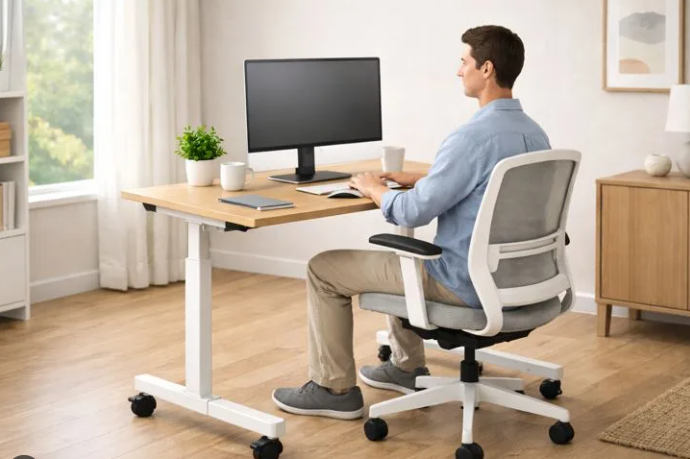
Your chair does not need to be expensive to provide a reasonably comfortable working position. Adjust it so your feet are supported, your back has comfortable support, and your shoulders can remain relaxed.
Your knees do not have to stay at one exact angle. A roughly right-angle position at the knees can be a useful starting point, but comfort and support are more important than forcing your body into a fixed position.
Simple ways to improve an existing chair:
- Place a rolled towel or small cushion behind your lower back if the chair does not provide enough support.
- Use a footrest, small stool, or sturdy box if your feet do not reach the floor comfortably.
- Add a suitable seat cushion if the chair is too firm.
- Adjust the chair height so you can work without lifting your shoulders toward your ears.
If you are buying a chair, prioritize adjustability, adequate back support, and a seat that allows you to work comfortably rather than focusing on a particular brand or chair type.
3. Position Your Keyboard and Mouse Correctly
Keep your keyboard and mouse close enough that you do not need to reach forward repeatedly. Your shoulders should remain relaxed, with your elbows comfortably close to your body.
Your elbows can be around a right angle or slightly more open, depending on your desk height and individual comfort. Your wrists should remain relatively straight rather than being repeatedly bent upward or sideways.
Simple adjustments:
- Move the keyboard closer to the edge of the desk if you are reaching too far.
- Keep the mouse beside the keyboard rather than far away from it.
- Lower your chair or raise your desk if your shoulders are constantly lifted while typing.
- Use an external keyboard and mouse with a raised laptop.
- Consider an ergonomic mouse or keyboard if your current equipment causes discomfort.
A wrist rest can provide support while you are resting, but it should not force your wrists into an awkward position while you type.
4. Reduce Screen Glare
Poor lighting can make computer work uncomfortable, particularly when reflections make text difficult to see.
Position your monitor so windows and bright lights are not directly reflected on the screen. If possible, place your desk perpendicular to a window rather than directly facing it or having the window immediately behind the screen.
You can also:
- Adjust blinds or curtains during bright periods.
- Move lamps away from the direct line of reflection.
- Increase text size instead of leaning closer to the screen.
- Adjust screen brightness to suit the surrounding room.
The goal is comfortable visibility, not simply making the screen as bright as possible.
5. Keep Frequently Used Items Within Easy Reach
Your workspace should allow you to access commonly used items without repeatedly twisting, stretching, or reaching across the desk.
Keep your keyboard, mouse, phone, notebook, and other frequently used items within a comfortable reach.
If you regularly use a second monitor, position it so you do not need to repeatedly turn your head or torso to view it. If one screen is used substantially more than the other, place the primary screen directly in front of you.
6. Give Your Feet Proper Support
Your feet should have a stable place to rest while you work. If they do not reach the floor after adjusting your chair, use a footrest or another sturdy, stable surface.
A box can work as a temporary footrest if it is strong enough, does not slide easily, and provides a stable surface.
Avoid using unstable objects that could tip or collapse.
7. Improve Your Desk Setup Without Buying Anything
Before purchasing ergonomic accessories, look at what you already have.
You can often make useful changes by:
- Raising a laptop with sturdy books.
- Using a folded towel for additional lower-back support.
- Moving your keyboard closer to your body.
- Rearranging your monitor to reduce glare.
- Using a stable box as a temporary footrest.
- Moving frequently used items closer to reduce unnecessary reaching.
These adjustments cost little or nothing and can help you identify what needs improvement before you spend money on new equipment.
8. Do Not Stay in One Position All Day
Even a well-adjusted workstation can become uncomfortable if you remain in the same position for hours.
Instead of trying to maintain one “perfect” posture throughout the day, change positions regularly. Stand up, walk around, stretch, or switch between sitting and standing when practical.
You can also use short breaks to:
- Refill your water bottle.
- Walk around the room.
- Stretch your legs and shoulders.
- Look away from your screen.
- Change your sitting position.
If you use a standing setup, alternate between sitting and standing rather than treating standing as a requirement for an entire workday.

9. Use the 20-20-20 Rule for Screen Breaks
If you spend much of your day looking at a screen, the 20-20-20 rule is a simple way to remind yourself to look away regularly: every 20 minutes, look at something about 20 feet away for at least 20 seconds.
It is a practical habit for reducing continuous near-screen viewing. It does not replace the need for regular movement or longer breaks during the workday.
10. Build a Simple Ergonomic Routine
You can make your setup more comfortable by checking a few things at the start of your workday:
- Screen: Can you view the screen without repeatedly bending your neck?
- Chair: Are your back and feet comfortably supported?
- Keyboard: Can you type without reaching forward or bending your wrists excessively?
- Mouse: Can you use it without repeatedly stretching your arm?
- Lighting: Can you read the screen without fighting glare?
- Movement: Do you have regular opportunities to stand, walk, or change position?
Budget Ergonomic Home Office Checklist
| Setup Element | Comfortable Position | Budget Adjustment |
| Screen | Easy to view without prolonged neck bending | Laptop stand or stable stack of books |
| Keyboard & Mouse | Close to your body with relaxed shoulders and relatively straight wrists | External keyboard and mouse |
| Chair | Back supported and feet stable | Rolled towel, cushion, or footrest |
| Feet | Supported on the floor or a stable surface | Sturdy footrest or box |
| Lighting | Screen free from distracting reflections | Reposition desk or adjust blinds |
| Frequently Used Items | Easy to reach without repeated twisting | Rearrange your desk |
Final Thoughts
An ergonomic home office does not have to involve expensive equipment. Start by adjusting your existing workspace so your screen, chair, keyboard, mouse, and feet are comfortably positioned. Then build regular movement into your workday.
If a particular setup consistently causes pain, numbness, tingling, or other persistent symptoms, changing your workstation may not be enough. Consider discussing the symptoms with an appropriate healthcare professional.
The information provided on this blog is not intended to be medical advice and should not be relied upon as such.If you have any medical concerns, please consult with a qualified healthcare professional. We are not responsible for any harm or injury caused by reliance on the information provided.